
How to upload a taster session
A taster session is a great way to attract new people to your club by giving them the experience of getting on court.
To set up your course log into your account on Play Squash here.
Make sure you have your Leaders and Coaches added to the account, to do so, follow this process.
Select the coaching tap from the navigation on the left hand side of the screen:
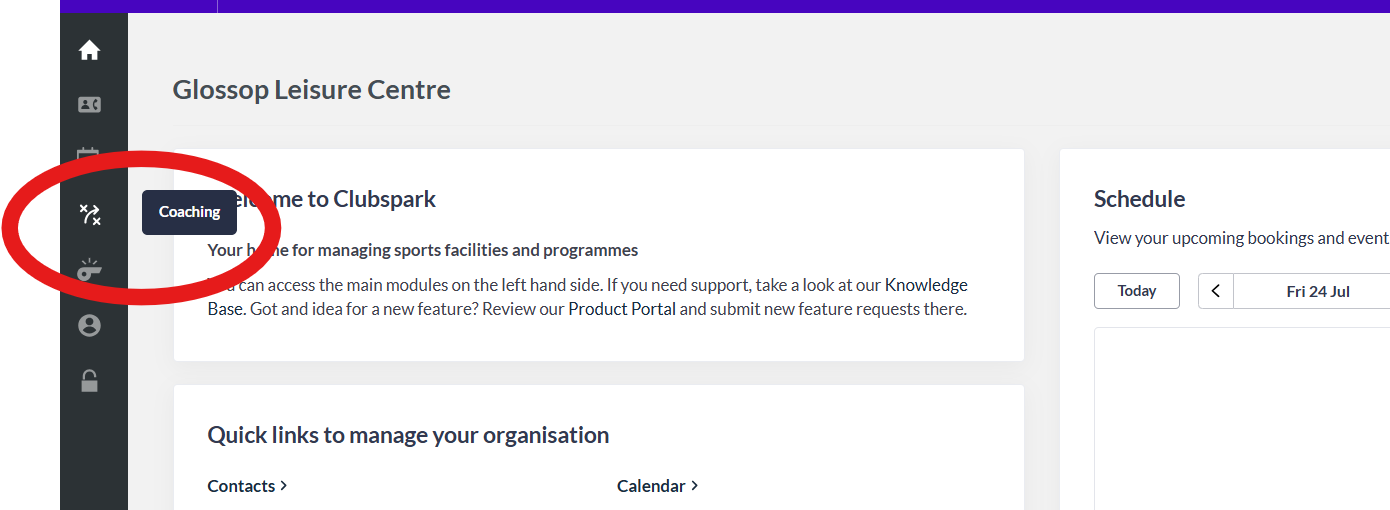
Once the page changes, click the "Add new category" button on the top right of the screen.

Work through the page populating it with as much information as possible:
- Name - what is the name for your category e.g. Women's Squash Week, Glossop Squash Club Women's section etc
- Programme - select whether the session is for adults or juniors
- Contact name - Add contact details for the course should participants need to get in contact with someone from the club/venue
- Contact email address
- Contact phone number
- Waiting list - click the option you would like for your waiting list: Automatic, Manual or Not enabled
- Contact Tag - select from the drop down if this links to an existing programme, this isn't mandatory
- Default Description - here you can include additional information to appear on the course page, try to reassure any nerves or answer questions a newcomer might ask e.g. is equipment provided
- Default confirmation - this will appear in the confirmation email the player receives when they book onto the course. You might want to include information about the facility here, is there parking, how do you locate the courts at the facility.
- Reminder email information - if you want to send your players a reminder email include any information you want to let them know here.
- Cancellations - click this button if you want to allow participants to be able to cancel their place on the course. If you click this there is a button to auto refund, if you don't click this you will have to refund them manually.
Once you have populated the page click "Save category". It may take a few minutes but your session will then appear on the session finder.
You now need to create the session, this is where you add the specifics about your session.
Once the category has saved, the page will change. When on the next page click "Create a new course":

When the page changes you will be asked "What type of course do you want to create?", select single session:

Work through the page populating it with as much information as possible:
- Status - you want the session to appear on the session finder, select Public

- Your reference - this is personal to the club and unique to the course
- Activity - select between squash and or squash 57
- Name - this is the name of your course that your customers will see when searching or booking e.g. Women's Squash Week taster session
- Skill level - you will be presented with a drop down including Beginner, Intermediate, Advanced and Improver, select Beginner
- Description - here you can expand or change the description you previously wrote when creating the category
- Confirmation - here you can expand or change the confirmation email you previously wrote when creating the category
- Send reminder emails - if you want to send your players a reminder email click this button, you will then be presented with a box to write the reminder message
- Date - what is the date of your taster session
- Contact name - Add contact details for the course should participants need to get in contact with someone from the club/venue
- Contact email address
- Contact phone number
- Cover photo - if you have a photo you would like to be used for the cover photo on the course page, upload it here. For best viewing of this photo we recommend uploading a photo with dimensions of 1800px by 440px. There is already a default photo on the course template or you can choose a photo from here.
- Payment methods - select whether you are taking payments online or offline (if you are taking payments through your own booking system, select offline). If you are taking payments online, you will need to connect a Stripe account to take payment.
- Cost per session - add how much the taster session costs, if the session is free of change, enter 0 into the box
- Member discount - select yes or no if there is a member discount to attend. If you select "Yes" you will be asked to enter the cost for members
- Cancellations - click this button if you want to allow participants to be able to cancel their place on the course. If you click this there is a button to auto refund, if you don't click this you will have to refund them manually
- Booking redirect URL - if you have your own booking platform you can redirect users to book there, simply add the url in this box. When a user is on Play Squash and they are on the course page, when they click "Book now", they will be taken to your website.
- Theme - (Please ignore this box)
- Minimum age - the minimum age for Squash 101 is 16, you can change the age higher if you wish
- Maximum age - you can set a maximum age for the course
- Leader - select the leader from the list who will be delivering the sessions. You should add your leaders/coaches before you start, follow this process to add them
- Coaching team - select the coach from the list who will be delivering the session.
- Session start time - what time is your taster session starting at
- Duration - how long is each session on the course
- Registration window - if you want to have a registration window select the button, you will then be asked to add the dates for when you want registration to open and close
- Capacity - how many people can attend the session.
Once you have populated the page click "Save course". It may take a few minutes but your session will then appear on the Play Squash session finder.